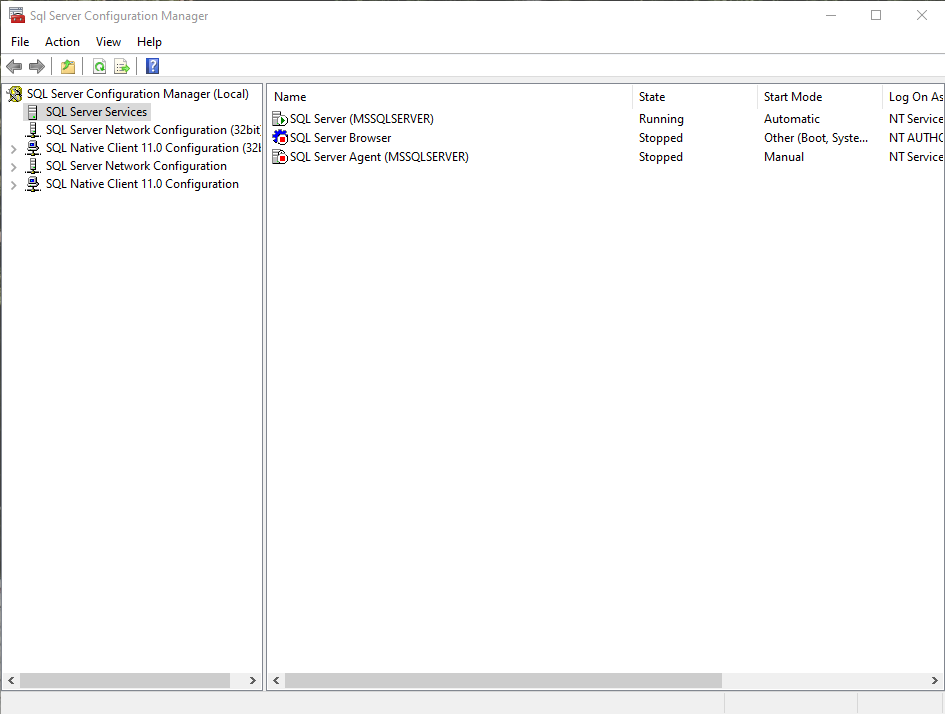
Opening SQL Server Configuration Manager
Solution
To Open SQL Server Configuration Manager, run following Path depending on your SQL Server version.
| Version | Path |
|---|---|
| SQL Server 2019 | C:\Windows\SysWOW64\SQLServerManager15.msc |
| SQL Server 2017 | C:\Windows\SysWOW64\SQLServerManager14.msc |
| SQL Server 2016 | C:\Windows\SysWOW64\SQLServerManager13.msc |
| SQL Server 2014 (12.x) | C:\Windows\SysWOW64\SQLServerManager12.msc |
| SQL Server 2012 (11.x) | C:\Windows\SysWOW64\SQLServerManager11.msc |
| Taken from microsoft documentation |
You can execute following T-SQL query, to see which SQL Server version you are running:
USE master
SELECT @@version
Solving Problems
If you’ve got error message like this:
Cannot connect to WMI provider.
You do not have permission or the server is unreachable.
Note that you can only manage SQL Server 2005 and later servers with SQL Server Configuration Manager.
Invalid class [0x80041010]
You need to run following snippet:
mofcomp "%programfiles(x86)%\Microsoft SQL Server\#ServerVersion#\Shared\sqlmgmproviderxpsp2up.mof"Don’t forget to replace #ServerVersion# with your server version. For example for SQL Server 2016 – SQLServerManager13.msc – 130.
To see all versions, run following from terminal:
ls "C:\Program Files (x86)\Microsoft SQL Server"All versions:
    Directory: C:\Program Files (x86)\Microsoft SQL Server

Mode                LastWriteTime         Length Name
----                -------------         ------ ----
d-----       30.07.2018     10:12                100
d-----       30.07.2018     10:18                110
d-----       30.07.2018      9:14                120
d-----       21.02.2020     15:42                130
d-----       30.07.2018      9:13                140
d-----       18.06.2019     11:01                80
d-----       27.07.2018     11:17                90
d-----       30.07.2018      9:13                Client SDK
To fix SQL Server 2016 Configuration Manager, run following snippet as administrator:
mofcomp "%programfiles(x86)%\Microsoft SQL Server\130\Shared\sqlmgmproviderxpsp2up.mof"You should see successfull message:
Microsoft (R) MOF Compiler Version 10.0.18362.1
Copyright (c) Microsoft Corp. 1997-2006. All rights reserved.
Parsing MOF file: C:\Program Files (x86)\Microsoft SQL Server\130\Shared\sqlmgmproviderxpsp2up.mof
MOF file has been successfully parsed
Storing data in the repository...
Done!
After this, you should be able to open SQL Server Configuration Manager, with C:\Windows\SysWOW64\SQLServerManager13.msc.