Github Copilot in Windows Terminal
Intro
Github Copilot is an awesome tool, that I use in JetBrains Rider and VS Code and recently I found out, that Copilot can be used in CLI aswell. Let me show you how to set it up.
Installation
- Install github cli
This depends on what packaging software you use. For full list of choices follow this link https://github.com/cli/cli#windows. I’m gonna use chocolatey.
choco install gh- Authenticate
Run following, to authenticate with your GitHub account.
gh auth login- Install Copilot
gh extension install github/gh-copilot- You are done
Now you can run
gh copilot suggest "list all movie files using powershell"Bonus
Running previous suggest command is in my opinion not very convenient, because it’s long and you need to first choose what kind of command you are asking about.
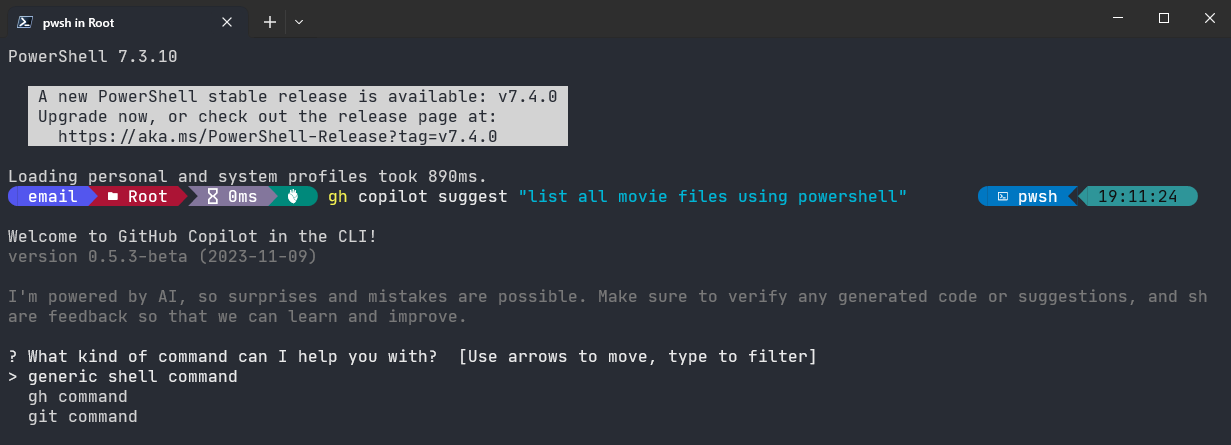
To get around that, we can use -t argument and we can specify shell so the full command will look as follows
gh copilot suggest -t shell "list all movie files using powershell"This gives you the anwser right away, but it’s still too long, so let’s fix that.
Open your powershell profile – type $PROFILE, hit ENTER and you will get the profile path, then open it in your prefered editor.
Alteratively, if you use VS Code, just type: code $PROFILE, this opens your powershell profile in VS Code right away.
Once you opened the powershell profile, paste in following code:
# Github Copilot CLI aliases

<#
.SYNOPSIS
# Runs Github Copilot CLI with shell template
#>
function ?? {
    gh copilot suggest -t shell $args
}

<#
.SYNOPSIS
# Runs Github Copilot CLI with git template
#>
function git? {
    gh copilot suggest -t git $args
}

<#
.SYNOPSIS
# Runs Github Copilot CLI with gh template
#>
function gh? {
    gh copilot suggest -t gh $args
}

<#
.SYNOPSIS
# Runs Github Copilot CLI with powershell template
#>
function ps? {
    gh copilot suggest -t shell ('Use powershell to ' + $args)
}
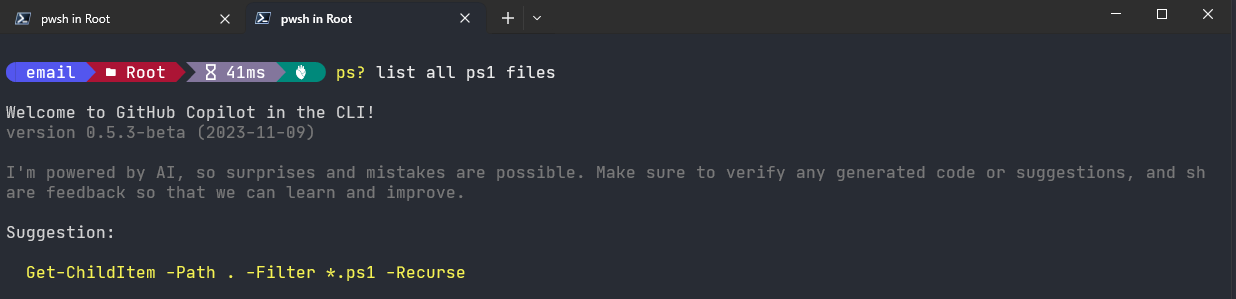
Save the profile, restart your terminal and voila, you can use ?? or ps? commands. For example ps? list all ps1 files gives you the anwser
Get-ChildItem -Path . -Filter "*.ps1" -Recurse -FileEnjoy 👍